Unity plugin: overview
The VERA suite of tools is divided into two primary components: the VERA web interface and the VERA Unity plugin. This section will guide you through an overview of the VERA Unity plugin and its various components.
If you would like a quick-reference page for the VERA Unity plugin, refer to the Unity plugin: quick reference section.
Plugin overview
The VERA plugin is a Unity package that can be imported into any Unity project. It provides a set of tools and scripts designed to facilitate the process of creating XR experiments in Unity, and logging data during those experiments to the VERA web interface.
The plugin accomplishes this by interfacing directly with the VERA web interface.
Note
The VERA plugin is only meant to handle Unity-specific functionality, such as logging data during an experiment. All experiment management, file type definitions, condition definitions, and data storage are handled by the VERA web interface.
Additionally included in the VERA Unity plugin are a variety of tools designed to aid in the process of creating your XR experiments in a more general context. Notably, the plugin features tools for streamlining the process of building and uploading your experiment for WebXR (see the WebXR guide section for more details), as well as tools for providing accessibility options to participants with physical disabilities (see the The VERA Locomotion Accessibility Toolkit (VLAT) section for more details).
Before continuing, ensure you have installed the VERA Unity plugin in your Unity project. See the Installation and setup section.
The VERA Settings window and authentication
The VERA Settings window allows you to manage your connection to the VERA portal and configure your experiments. To access the VERA Settings window, select the VERA tab in the Unity menu bar, then click on Settings. If you do not see the VERA tab in the Unity menu bar, ensure that you have imported the VERA Unity package correctly (see the Installation and setup section).

If this is your first time opening the VERA Settings window, it will prompt you to Authenticate. Authentication is the process by which you link your Unity project to your VERA account, and complete the handshake between the VERA Unity plugin and the VERA web interface.
If your Unity session is not authenticated, you will not be authorized to record data to the VERA portal. To authenticate your Unity project, click the Authenticate button in the VERA Settings window. You will be taken to the VERA web portal to log in and authorize your Unity project.
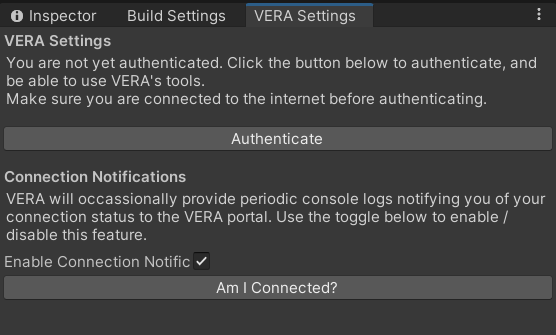
Once you are authenticated, the VERA Settings window will display your account information, including your name.
Using the VERA Settings window
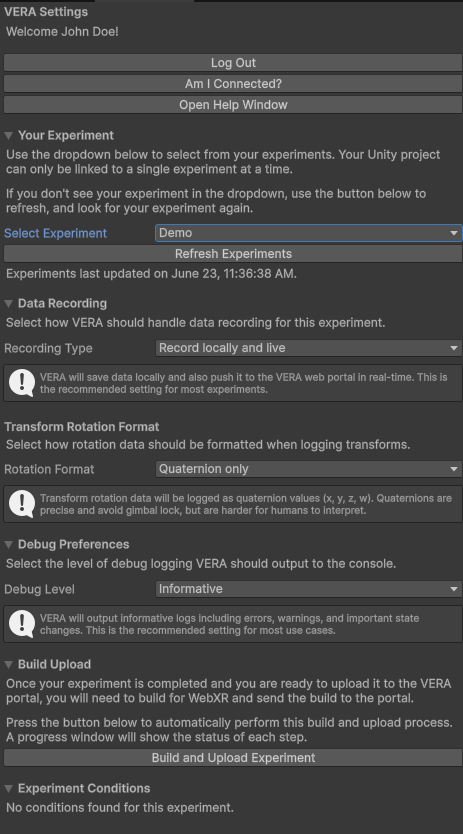
Once you are authenticated, you can use the VERA Settings window to manage the following aspects of your project:
Help Guide: Access a quick reference / help guide for your VERA experience.
Your Experiment: Select the experiment you wish to record data to. This dropdown will be populated with all experiments for which you have edit permissions. Ensure you have the correct experiment selected before recording data.
Data Recording: Select how you will record data, either locally and live (data is recorded to your local machine and uploaded live to the VERA portal), local only (data is recorded to your local machine only, and not uploaded to VERA), or none (data is not recorded at all). The default and recommended setting is local and live.
Debug Preferences: Configure how often debug logs will be sent to your Unity console.
Build Upload: When you are ready, click the “Build and Upload Experiment” button to send your experiment to the VERA portal. This button will handle the entire build process.
Next Steps
There are four main featuresets to the VERA Unity plugin: Conditions, Logging, Questionnaires, and Participant Sessions. These featuresets work together to allow you to create and manage your XR experiments in Unity using the VERA plugin.
The Unity plugin: managing conditions section explains how to set up and manage experimental conditions in your Unity experiments using the VERA plugin.
The Unity plugin: logging data section explains how to log CSV data during your Unity experiments using the VERA plugin.
The Unity plugin: running questionnaires section explains how to create and manage questionnaires in your Unity experiments using the VERA plugin.
The Unity plugin: managing sessions section explains how to manage participant sessions in your Unity experiments using the VERA plugin.
After exploring these topics, consider exploring the advanced features of the Unity plugin, such as the WebXR guide and the The VERA Locomotion Accessibility Toolkit (VLAT) sections.
At any time, it may be useful to reference the Unity plugin: quick reference section for a concise overview of the VERA Unity plugin’s features and functionality.