VERA Sandbox Demo: Intro
The VERA Sandbox Demo is a sample “mock experiment” designed to demonstrate the core features of VERA. This page walks you through the process of using the VERA Sandbox, providing a hands-on demonstration of how to use VERA.
For a “cheat-sheet” quick-reference guide to the VERA Sandbox Demo, see VERA Sandbox Demo: “Cheat-Sheet” Quick Reference Guide.
What’s in the demo
Use the VERA web interface to create and manage experiments.
Link your Unity project to the VERA web interface.
Use the VERA Unity plugin to manage experimental conditions.
Use the VERA Unity plugin to log data during an experiment.
Use the VERA Unity plugin to manage questionnaires during an experiment.
Deploy an experiment to participants using WebXR.
Use the VERA web interface to view and download data collected from an experiment.
Setup and installation
Before you can start using the VERA Sandbox Demo, you will need to install the necessary tools. Follow the steps below to get set up with the VERA Sandbox Demo.
Install Unity: Download and install Unity Hub from the Unity download page. Open Unity Hub and install the Unity editor, version 6000.3.9f1 (other 6000 versions will suffice - but 6000.3.9f1 is recommended). (Unity editor installation guide)
Install Web Build Support: In Unity Hub, navigate to the Installs tab and find your installed Unity editor. Click the three dots next to it and select Add Modules. In the list of modules, find and select Web Build Support, then click Continue to install it. (Unity module installation guide)
Install the VERA Sandbox Demo: To obtain access to the sandbox demo, you can either:
Clone the VERA Sandbox Demo repository to your local machine. You will need to use Git to clone the repository (Git cloning guide). Once you have cloned the repository, open Unity Hub and click the Add button to add the cloned repository as a project in Unity Hub.
Or, install the VERA Sandbox Demo Unity sample package from the Unity package manager. First, open an existing Unity project (6000 or up), or create a new Unity project (6000 or up). Install VERA with the package manager via git URL (Select “Window” -> “Package Manager” -> “+” -> “Add package from git URL…” and enter https://github.com/ucf-research/vera-package.git). After VERA is installed, select the “Samples” tab, and click to import the “VERA Sandbox Demo” sample into your project. (Unity package installation guide)
Open the VERA Sandbox Demo in Unity: Either from the cloned repository or from the imported sample package, find the “SandboxScene” scene and open it. You should be greeted with the Unity project for the VERA Sandbox Demo.
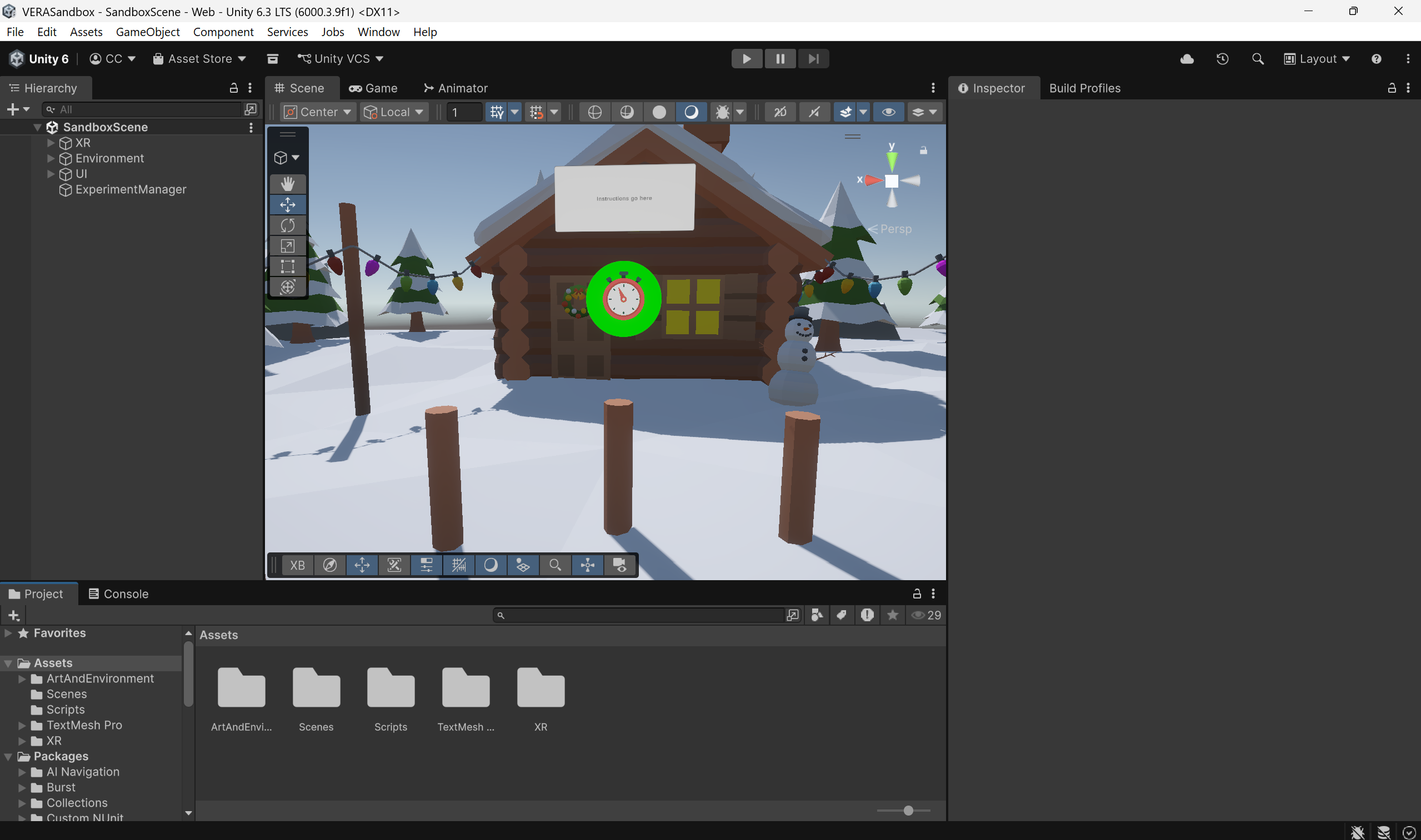
That’s it - you’re ready to start using the VERA Sandbox Demo! Before you continue, it may be useful to ensure you have a code editor set up to work with Unity, such as Visual Studio Code, and ensure that code editor has proper IntelliSense (syntax highlighting, errors, auto-fill, etc.) set up for Unity C# development. For more details on setting up VSCode for Unity, see the VSCode Unity setup guide.
Overview of the VERA Sandbox Demo
The VERA Sandbox Demo is a simple “mock experiment” designed to demonstrate the core features of VERA.
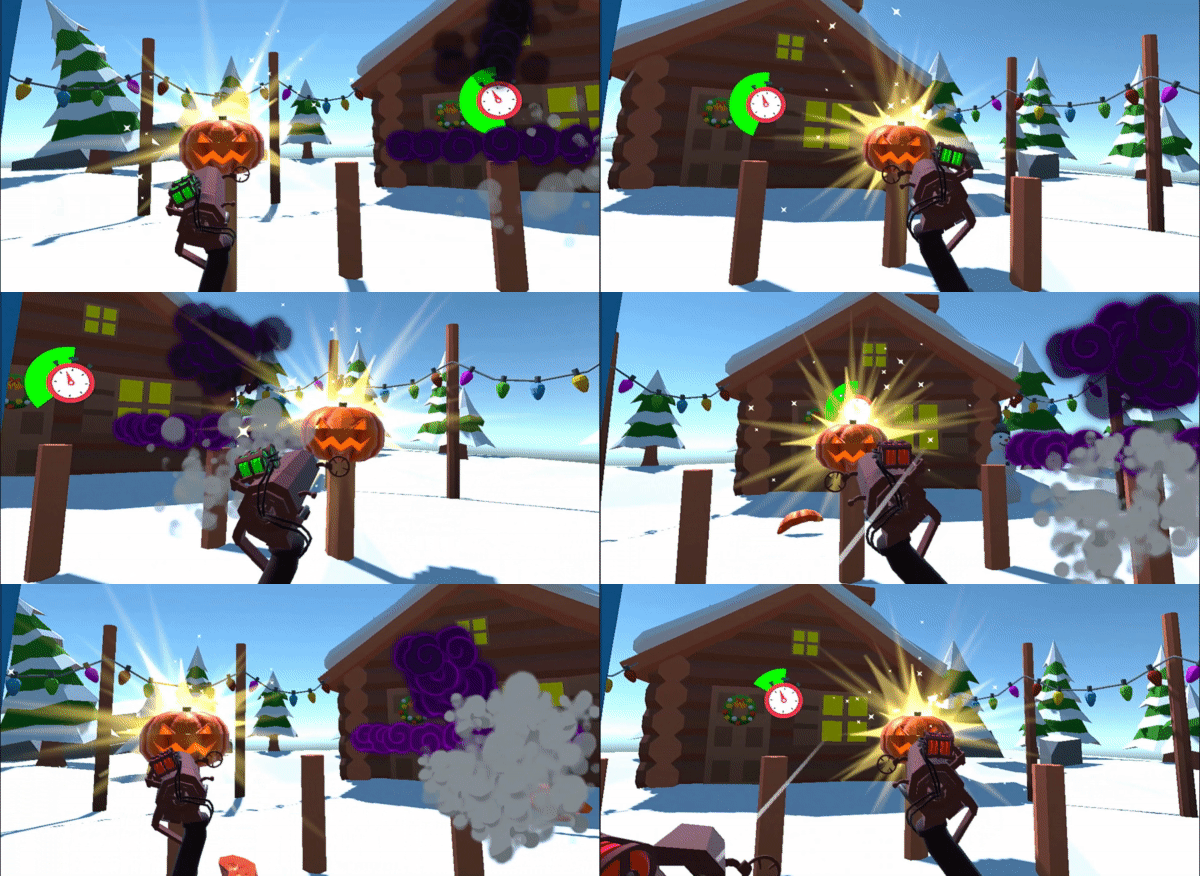
During this experiment, participants are given two laser rifles in a VR environment, and are asked to shoot at pumpkins that appear in the environment. The experiment is designed to have two different environments (a snowy environment and a desert environment), and to have two different “AimType” conditions, which determine how accurate the participant’s aim is when they shoot their laser rifles.
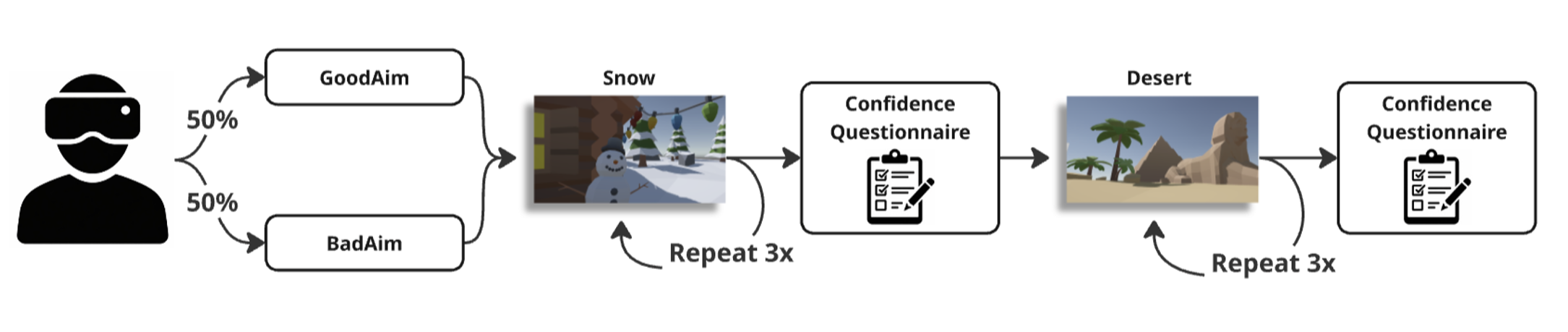
Each participant will transition through the following flow during the experiment:
AimType Assignment: Participants are assigned to one of two AimType conditions, which will determine how accurate their aim is during the experiment. Half the participants are assigned to “GoodAim”, meaning their shots will fire in the exact direction they are pointing; and the other half are assigned to “BadAim”, meaning their shots will fire with a random offset from where they are aiming.
Snow Firing Rounds: Participants will be placed in a Snow environment, where they will be asked to fire lasers at pumpkins for 20 seconds, with the goal of hitting as many as possible within the interval. This will occur for three 20-second “rounds” of pumpkin-firing.
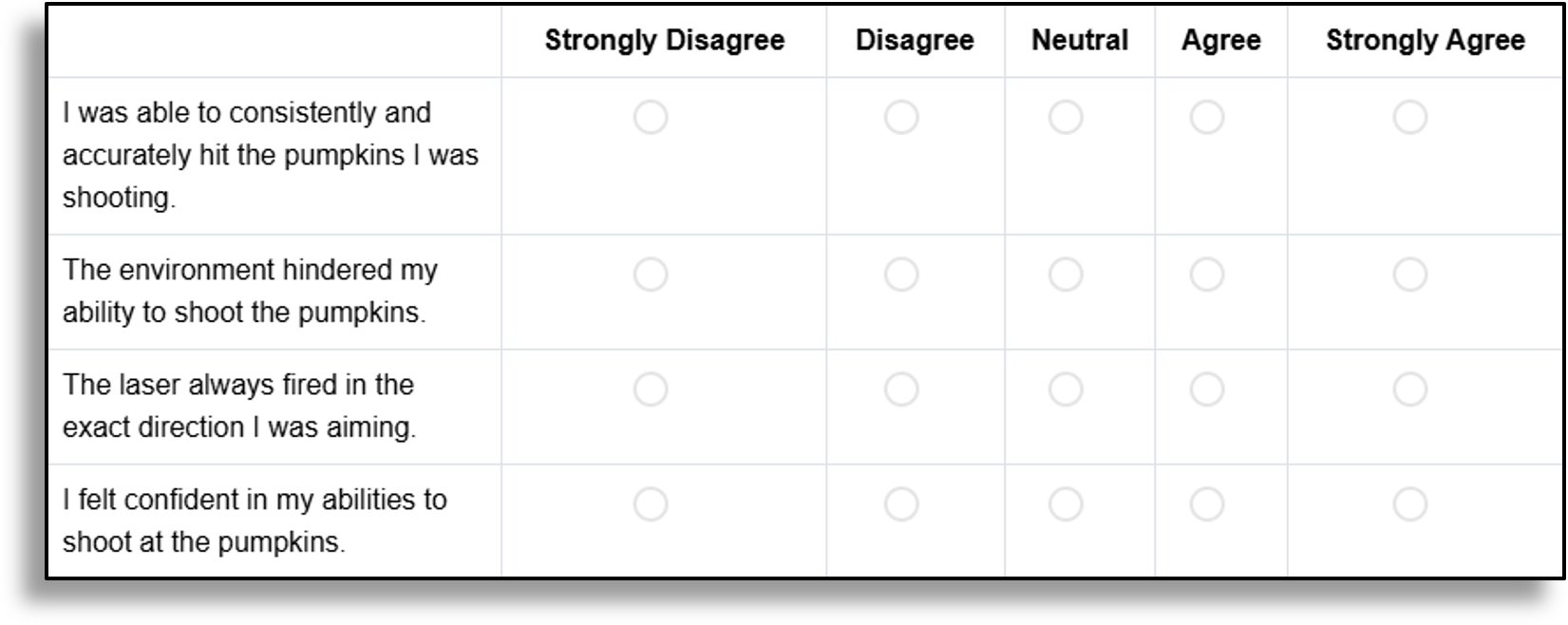
Confidence Questionnaire: After the Snow firing rounds, participants will be asked to fill out a short questionnaire, asking them to rate their confidence in their ability to shoot the pumpkins during the previous rounds.
Desert Firing Rounds: Participants will be placed in a Desert environment, where they will repeat three additional 20-second roundsof firing pumpkins.
Confidence Questionnaire: After the Desert firing rounds, participants will again be asked to fill out the same confidence questionnaire.
Experiment End: After the Desert rounds and questionnaire, the experiment will end.
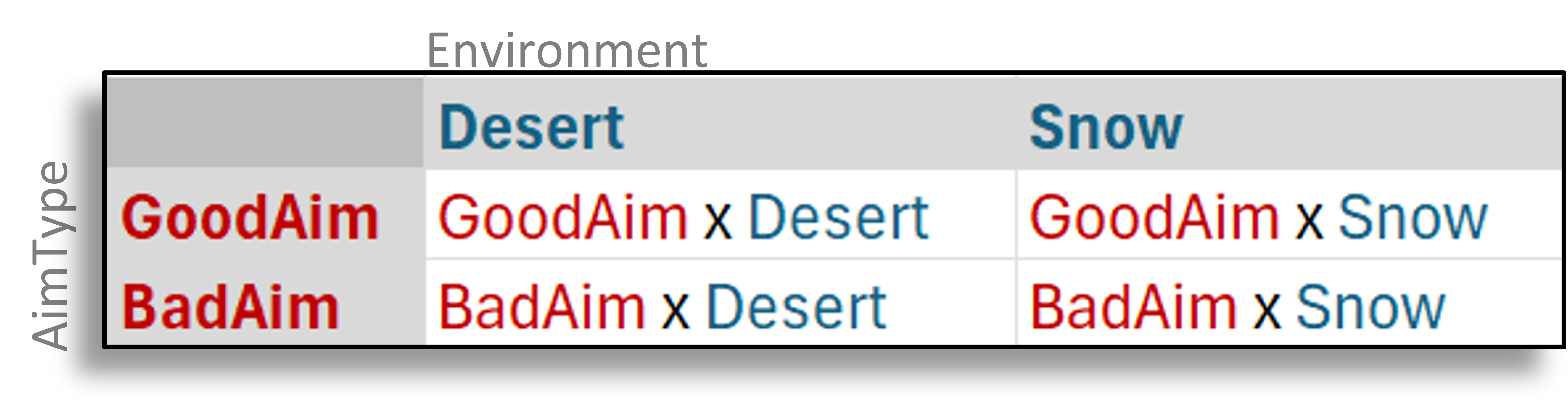
During this experiment, there are two independent variables, the participant’s AimType (GoodAim or BadAim), and the Environment they are in (Desert or Snow):
While the participant is performing the experiment, data will be logged. We will record a LaserLogs.csv file, which will record when a laser was fired, and whether the laser hit or missed its target:

As well as a RoundSummaries.csv file, which will record an accuracy summary of each round:

The confidence questionnaire we ask the participants to fill out will ask the participant to respond to four different simple Likert statements:
In summary…
The VERA Sandbox Demo is a simple mock experiment where participants shoot pumpkins in VR.
Participants are assigned to AimType “GoodAim” or “BadAim”, which determines how accurate their shots are.
Participants shoot pumpkins in Environment “Snow” or “Desert”.
As such, our two independent variables are AimType and Environment.
During the experiment, we log data about the participant’s shots, including LaserLogs.csv (whether each shot hit or missed) and RoundSummaries.csv (a summary of the participant’s accuracy during each round).
Participants also fill out a confidence questionnaire after each set of firing rounds.
Structure of the repository
The VERA Sandbox Demo repository provides you with a complete Unity project, which includes all the necessary scenes, scripts, and assets to run the mock experiment outlined above.
The goal of this sandbox demonstration will be to walk you through the process of transforming this experiment with VERA, retrofitting the experiment from a non-VERA project which does not manage conditions, log data, or display questionnaires, to a fully VERA-integrated experiment which uses VERA to manage conditions, log data, and display questionnaires.
By the end of this demonstration, you will be able to build the experiment for WebXR, host it on the VERA platform, distribute it to participants, and view the data collected from the experiment in the VERA web interface.
The VERA Sandbox Demo repository has two branches which you can use to follow along with this demonstration:
The main branch contains the base mock-experiment, which does not have VERA integrated.
The WithVERA branch contains the completed VERA-integrated version of the mock experiment - the “goal” version we will be working towards.
You can switch between branches in Git to view the differences between the base version of the experiment and the completed VERA-integrated version. For the rest of this demonstration, we will be using the main branch of the repository.
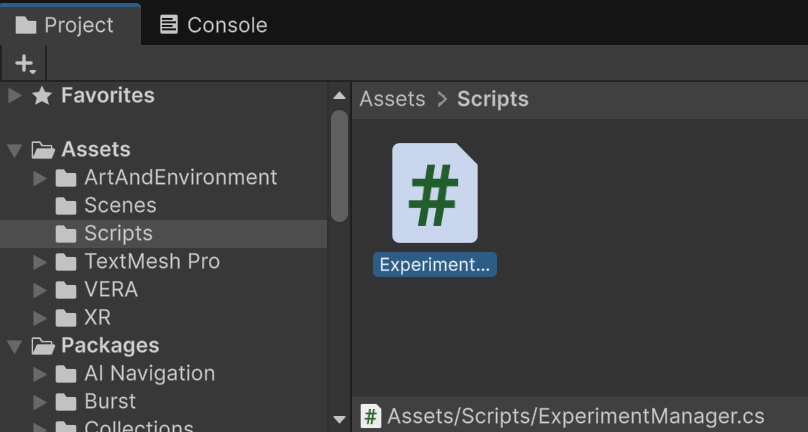
The only asset you will need to interact with throughout the course of this demonstration is the ExperimentManager.cs script, which is located in the Assets/Scripts folder of the Unity project. This script is responsible for managing the flow of the experiment, and is where we will be adding VERA integration throughout the course of this demonstration.
Take some time to become familiar with the repository and the ExperimentManager script before proceeding with the demonstration. You can open the ExperimentManager script in your code editor to view the code, and you can also view the flow of the experiment in the Unity editor by opening the Scenes > SandboxScene scene and running the scene in Play mode.
Next Steps
That’s it - you’re ready to start using the VERA Sandbox Demo!
In the next section, we will walk through the process of setting up your experiment on the VERA web interface. VERA Sandbox Demo: Web Setup
For a “cheat-sheet” quick-reference guide to the VERA Sandbox Demo, see VERA Sandbox Demo: “Cheat-Sheet” Quick Reference Guide.