
VERA Sandbox Demo: Results
The VERA Sandbox Demo is a sample “mock experiment” designed to demonstrate the core features of VERA. This page walks you through testing your sandbox experiment and viewing the data you collect on the VERA web interface.
If you have not yet already done so, set up the demo on the web interface and in Unity by following VERA Sandbox Demo: Web Setup and VERA Sandbox Demo: Unity Setup.
For a “cheat-sheet” quick-reference guide to the VERA Sandbox Demo, see VERA Sandbox Demo: “Cheat-Sheet” Quick Reference Guide.
What’s in this section
Test your sandbox experiment from Experiment Setup.
View test results on the VERA web client (Draft Mode).
Preview files such as LaserLogs, RoundSummaries, and questionnaire responses.
Where to go next when you are ready for Collection Mode.
Testing your experiment
While your experiment is in Draft, you can run test sessions without starting collection. From Experiment Setup, click the Test Experiment button in the header. This opens the results page for your experiment in Draft Mode.

While in Draft Mode, VERA gives you a single free test participant slot. Each time you run a new test session, that slot resets and the new session records over the previous one. This is expected - Draft Mode is for verifying that conditions, file logging, and questionnaires are working before you collect real data.
You can generate a test session by running the experiment from Unity (with this experiment selected in VERA Settings). When the session finishes, return to the results page to see it listed.
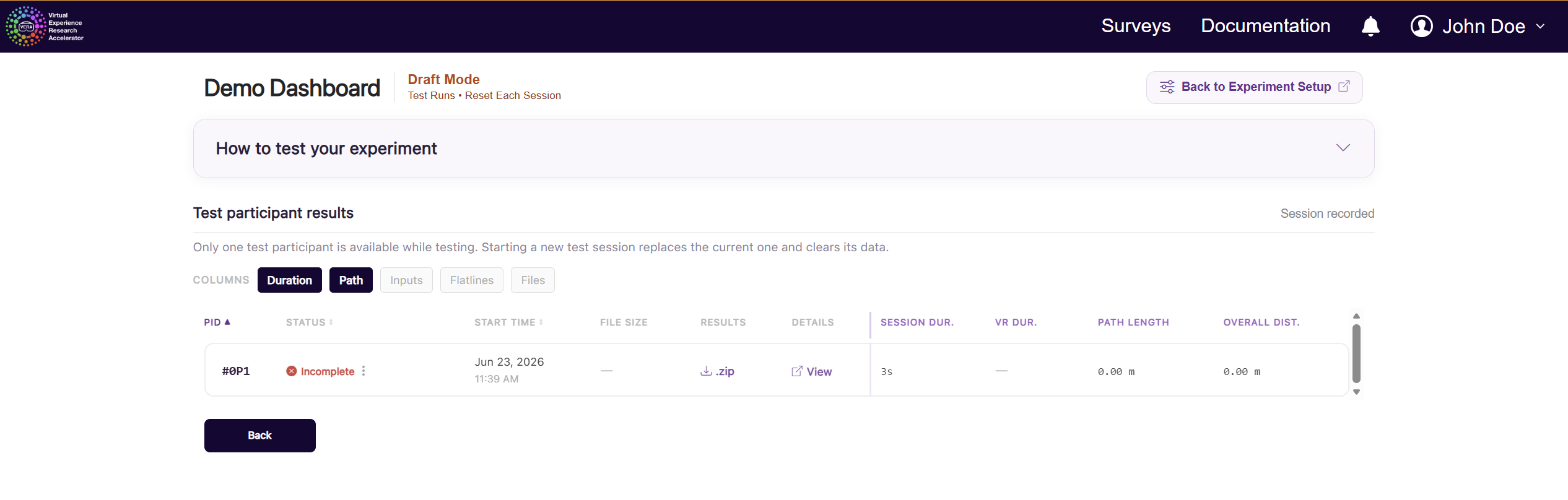
The Draft Mode results page shows a Test participant results table. Use the COLUMNS toggles (Duration, Path, Inputs, Flatlines, Files) to choose which preview metrics appear. From each row you can download a .zip of that session’s files, or click View for a detailed look at the session.
Click Adjust Setup at any time to return to the cards you configured earlier.
Viewing session files
Click View on a test session to open that participant’s results. On the left, you will see the files VERA recorded for the session. For the Sandbox Demo, you should expect:
Experiment_Telemetry.csv (recorded automatically by VERA)
LaserLogs.csv (each laser shot, including whether it hit)
RoundSummaries.csv (accuracy for each round)
Questionnaire responses for the Confidence Rating Questionnaire, if the session reached those prompts
Select a file to preview it in the web client (CSV files appear as a table). You can download an individual file, or download the full participant results as a ZIP.
Once you have previewed the files, you can download the session data for further analysis in spreadsheet software or your usual analysis tools.
A note on distribution
This sandbox walkthrough focuses on testing and viewing results as a researcher. Full participant-facing distribution (remote links, in-person, Prolific, and so on) is covered separately.
If you have already chosen a distribution method on the Experiment Flow card, test sessions still run through Test Experiment in Draft Mode. For an overview of distribution options, see Web interface: experiment distributions.
Warning
If you are using a VERA preview account, your access to building and distributing experiments may be limited. When you try to build an experiment for WebXR, you may receive a message notifying you that you do not have access to building for WebXR. If this is the case, and you would like to be able to build for remote distribution, please reach out to the VERA team.
Next steps: Collection Mode
When you are satisfied that the sandbox experiment logs data and questionnaires correctly, you can leave Draft and start collection.
From Experiment Setup, complete any remaining items in the Draft checklist (IRB, consent, distribution, and a completed test), then click Start Collection Mode. Collection mode uses token-backed participant sessions, with review states such as In Progress, Ready for Review, Approved, and Rejected.
For details on activations, tokens, approving or rejecting sessions, and downloading collection data, see:
That’s it - you’ve walked through the VERA Sandbox Demo from setup through viewing test results.
For a “cheat-sheet” quick-reference guide to the VERA Sandbox Demo, see VERA Sandbox Demo: “Cheat-Sheet” Quick Reference Guide.