
Web interface: viewing and downloading data
There are a variety of ways you can view, download, and manage recorded experiment data in the VERA web portal. This section provides a general overview of these data management features, and how to use them for your specific needs.
Before continuing, it may be useful to review the Web interface: overview section to understand the general layout and features of the VERA web portal.
As a reminder, experiments begin in Draft, where you can run test sessions with Test Experiment. When you are ready to collect real participant data, you start Collection Mode. For more details on these states, see the Activations: overview section. For more details on testing, see the Activations: testing your experiment section.
The Experiment Results Table
Once you have recorded data to your experiment, you can view it in the Experiment Results table. From Experiment Setup, click the Test Experiment button; from the dashboard, you can also open the experiment to reach its results.
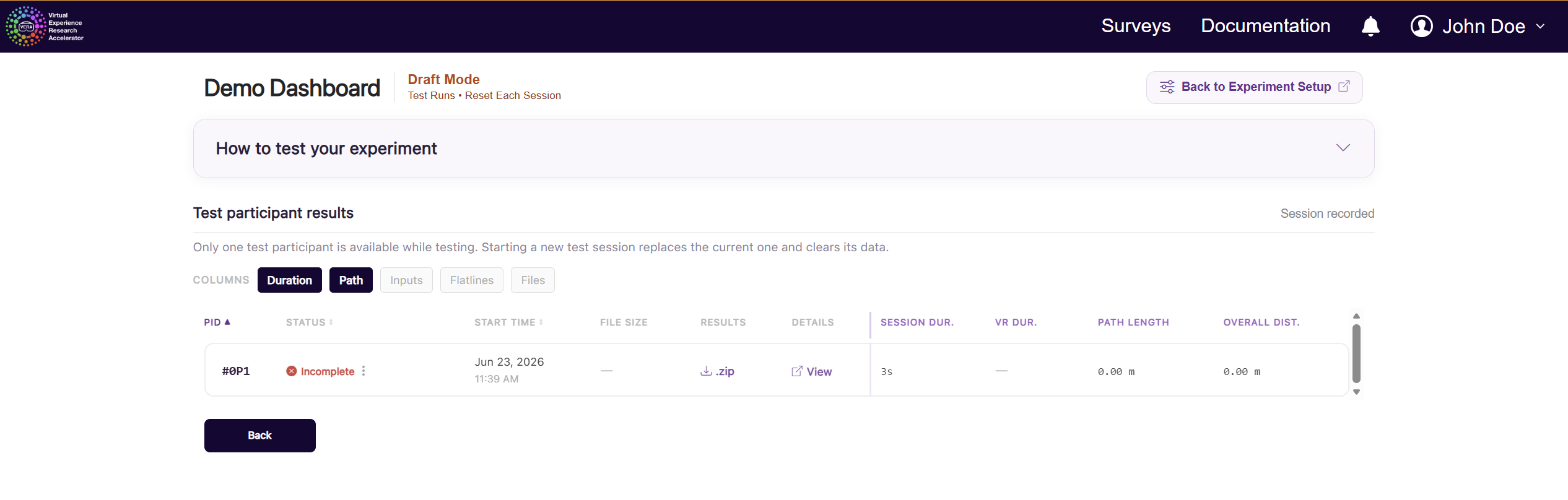
While the experiment is in Draft, you will see a Draft Mode results page with a single free test participant slot. Each time you run a new test session, this slot will reset, and the new session will record over the previous one.
Once the experiment is in Collection Mode, the results table is organized by review state.
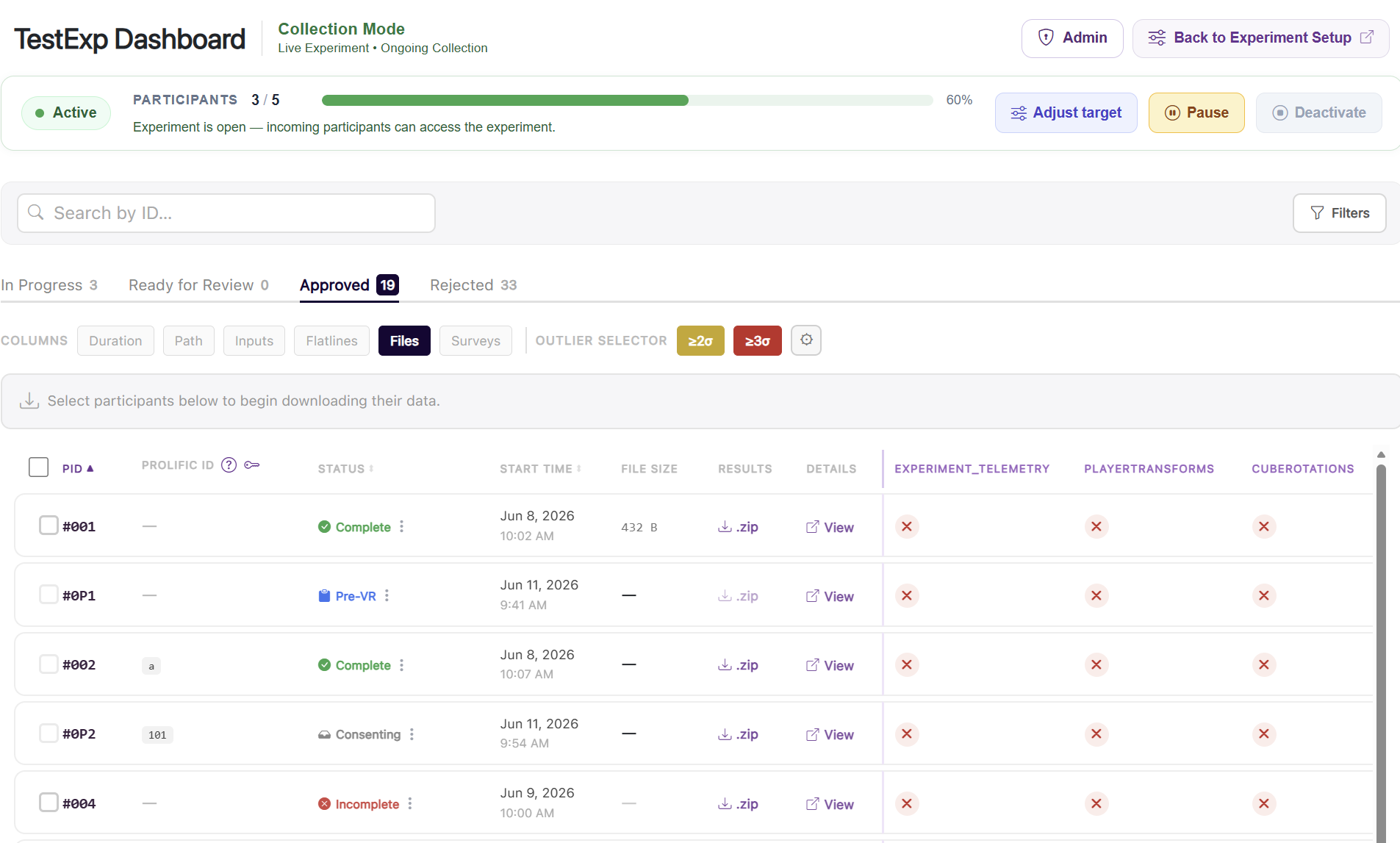
The Experiment Results table provides a high-level overview of the data recorded to your experiment. Each row in the table represents a single participant session.
During Collection, every participant who has entered your experiment will be marked as being in one of the following states:
In Progress: This participant has joined the experiment and is currently in progress. They are not yet ready to be approved or rejected.
Ready for Review: This participant has completed the experiment, withdrawn, or has otherwise reached a terminal state. They are now ready to be approved or rejected, and require manual review.
Approved: This participant has been approved, a single token has been spent to pay for their dataset, and their dataset is available to view or download.
Rejected: This participant has been rejected and their dataset is not available for download.
Swap to the desired state tab to see all participants in that state.
You will not be able to view or download collection data for participants who have not been approved. Draft test sessions can be previewed and downloaded without spending tokens.
Use the COLUMNS selectors to choose which preview metrics you would like to see in the table. From each row, you can download a .zip of the participant’s files when that dataset is available, or click View to open the participant’s detailed results.
For more details on approving and rejecting participant sessions, see the Activations: managing participants section.
Viewing Individual Participant Results
The VERA portal additionally provides a way to directly view the results of an individual participant session. From the experiment results table, click the View button for a particular participant session; you will then be presented with the participant’s results page.
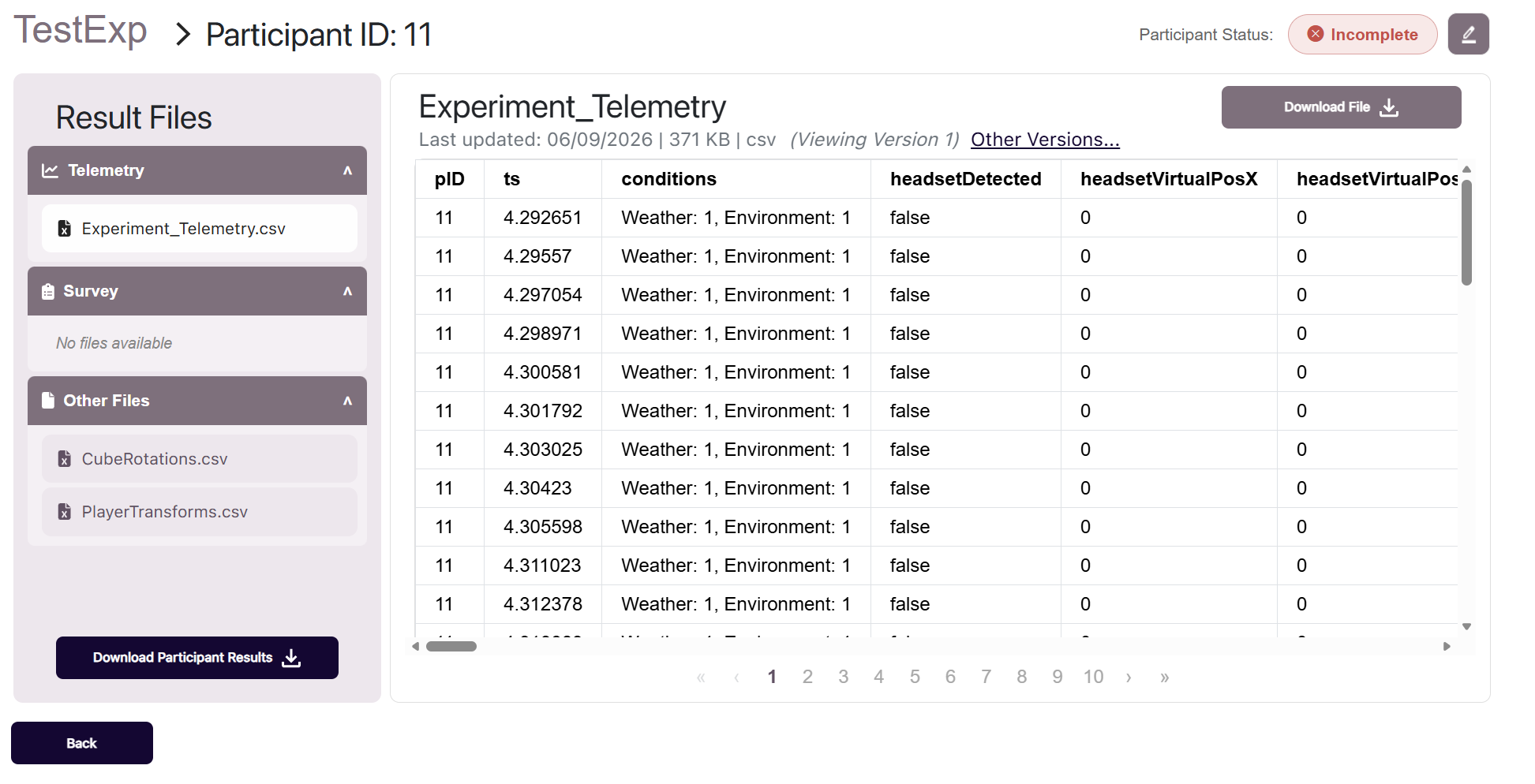
The participant results page provides a detailed view of the data recorded for an individual participant. At the top of the page, you can see the ID of the participant you are currently viewing.
On the left, you will see a list of all data files associated with the participant session. For each file, you can see when the file was last updated, as well as the file size. If a file has never been uploaded, it will be marked as such.
Clicking on an individual file will open a preview window on the right side of the page. This preview window will display the contents of the file in a human-readable format, if possible. For example, CSV files will be displayed as a formatted table. If the file is not in a human-readable format, or is otherwise not supported by the VERA preview system, a message will be displayed indicating such.
Individual files can be downloaded by clicking the Download File button at the top-right of the file preview window. The entirety of the participant’s data can be downloaded as a ZIP file by clicking the Download Session Results button.